If you’ve ever tried to figure out whether your CPU or GPU will hold you back in a game, chances are you’ve landed on a bottleneck calculator. They promise a simple answer: plug in your specs, and instantly know if your system is balanced. Sounds perfect, right? But here’s the truth—most of these calculators can be misleading, confusing, or even downright wrong.
In this article, you’ll learn why bottleneck calculators aren’t the silver bullet you think, how to interpret their results properly, and smarter ways to evaluate your gaming setup.
What a Bottleneck Calculator Claims to Do
At its core, a bottleneck calculator tries to compare your CPU and GPU and tells you which one might “limit” your performance. Many tools use percentages or color-coded warnings like red, yellow, or green.
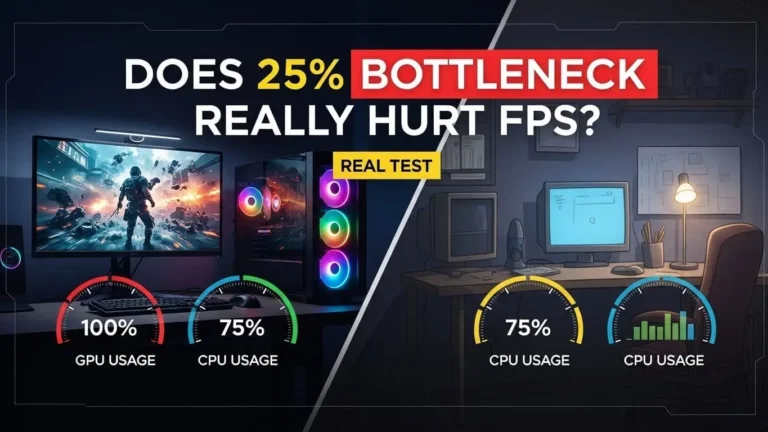
The idea seems simple: if your GPU is 80% and your CPU is 60%, the CPU is supposedly holding back the GPU. But real-world gaming doesn’t work in neat percentages.
Why it matters: Gamers often rely on these tools to decide whether to upgrade a component. A wrong calculation can lead to unnecessary spending or disappointment.
Why These Calculators Mislead
1. Oversimplified Models
Most calculators only consider raw specs—clock speeds, core counts, or memory size. They don’t account for how games use these components differently.
For example, a CPU-heavy strategy game like Civilization VI behaves very differently than a GPU-heavy shooter like Cyberpunk 2077. A bottleneck calculator might give the same “CPU-limited” warning for both, even though the impact in each game will differ greatly.
2. Ignoring Resolution and Settings
Gamers often forget that the resolution and graphics settings change bottleneck dynamics.
- At 1080p, your CPU might limit FPS in many games.
- At 1440p or 4K, the GPU becomes the main limiter.
Yet most calculators provide one blanket percentage without accounting for your display resolution or in-game settings. This is a huge reason why their advice can be misleading.
3. Not Considering Software & Drivers
Performance isn’t just hardware—it’s also software. Background apps, drivers, Windows updates, and game optimizations can all shift bottleneck behavior. Most calculators ignore these factors completely.
4. No Context for Real FPS
A calculator might tell you that your CPU is “bottlenecking” your GPU by 20%, but it won’t tell you if that actually affects your gameplay. In many cases, the FPS difference is negligible. This can make you worry unnecessarily or spend money on a component you don’t need.
How to Get Real Answers
So, how can you figure out bottlenecks without blindly trusting a calculator? Here’s what works.
1. Check Real-World Benchmarks
Benchmarking websites like TechPowerUp, GamersNexus, and Tom’s Hardware provide game-specific tests with exact FPS numbers for many CPU-GPU combos.
Tip: Look for benchmarks at your target resolution. This gives a realistic picture of how your system will perform.
2. Use Monitoring Tools
Instead of percentages from a calculator, check actual CPU and GPU usage in-game:
- CPU usage: Open Task Manager or MSI Afterburner. If it’s consistently at 90–100%, the CPU is limiting your FPS.
- GPU usage: If it’s never above 70%, your GPU might be waiting for the CPU.
This approach gives real data, not theoretical numbers.
3. Consider Game Types
Understand which games are CPU-heavy and which are GPU-heavy:
- CPU-heavy: Civilization VI, Cities: Skylines, Factorio.
- GPU-heavy: Cyberpunk 2077, Assassin’s Creed Valhalla, Control.
Adjust expectations accordingly. A “bottleneck” in one game might not exist in another.
4. Test Before Upgrading
If possible, try borrowing or testing parts before buying. Even a quick FPS test can save you hundreds of dollars.
Example: A CPU upgrade might only improve your FPS by 10 in your favorite game. That might not justify the cost compared to adjusting graphics settings.
Practical Example: A Common Misconception
Imagine you have:
- CPU: Intel i5-12400
- GPU: RTX 3060 Ti
- Monitor: 1080p 144Hz
A calculator might say your CPU is 20% bottlenecked.
Reality check: In most modern games at 1080p, your CPU might slightly limit FPS, but you will still hit 140–144 FPS in shooters. Upgrading to an i7 may only gain 5–10 FPS—barely noticeable in actual gameplay.
The lesson? Bottleneck percentages don’t equal practical performance differences.
Key Tips to Avoid Being Misled
- Ignore single-number outputs. Look at trends and context instead.
- Use real-game testing. FPS benchmarks are more reliable than calculator predictions.
- Factor in your resolution and settings. Higher resolutions shift bottlenecks from CPU to GPU.
- Check your system’s usage. CPU/GPU monitoring gives a true picture.
- Ask gamers in forums. Real-world experiences often reveal hidden issues calculators miss.
When a Bottleneck Calculator Is Actually Useful
Despite limitations, calculators aren’t entirely useless. They can provide:
- A rough estimate when comparing new hardware
- A starting point for beginner gamers unfamiliar with component balance
- Quick guidance to see which component to research first
Pro tip: Always combine calculators with real benchmarks and monitoring data.
Final Thoughts
Bottleneck calculators promise simplicity but often oversimplify complex hardware interactions. They ignore games’ unique demands, resolution differences, and software factors.
Instead of relying on a number from a calculator, focus on:
- Real benchmarks
- In-game monitoring
- Your specific gaming goals and settings
By taking a hands-on approach, you’ll make smarter upgrade decisions, save money, and enjoy smoother gameplay without the guesswork.
Upgrading your gaming PC is exciting, but don’t let flashy calculators dictate your choices. Use them as a guide, not a gospel. Real-world data and careful observation are your true allies in achieving balanced, high-performance gaming.